
01
Check your recording before generating
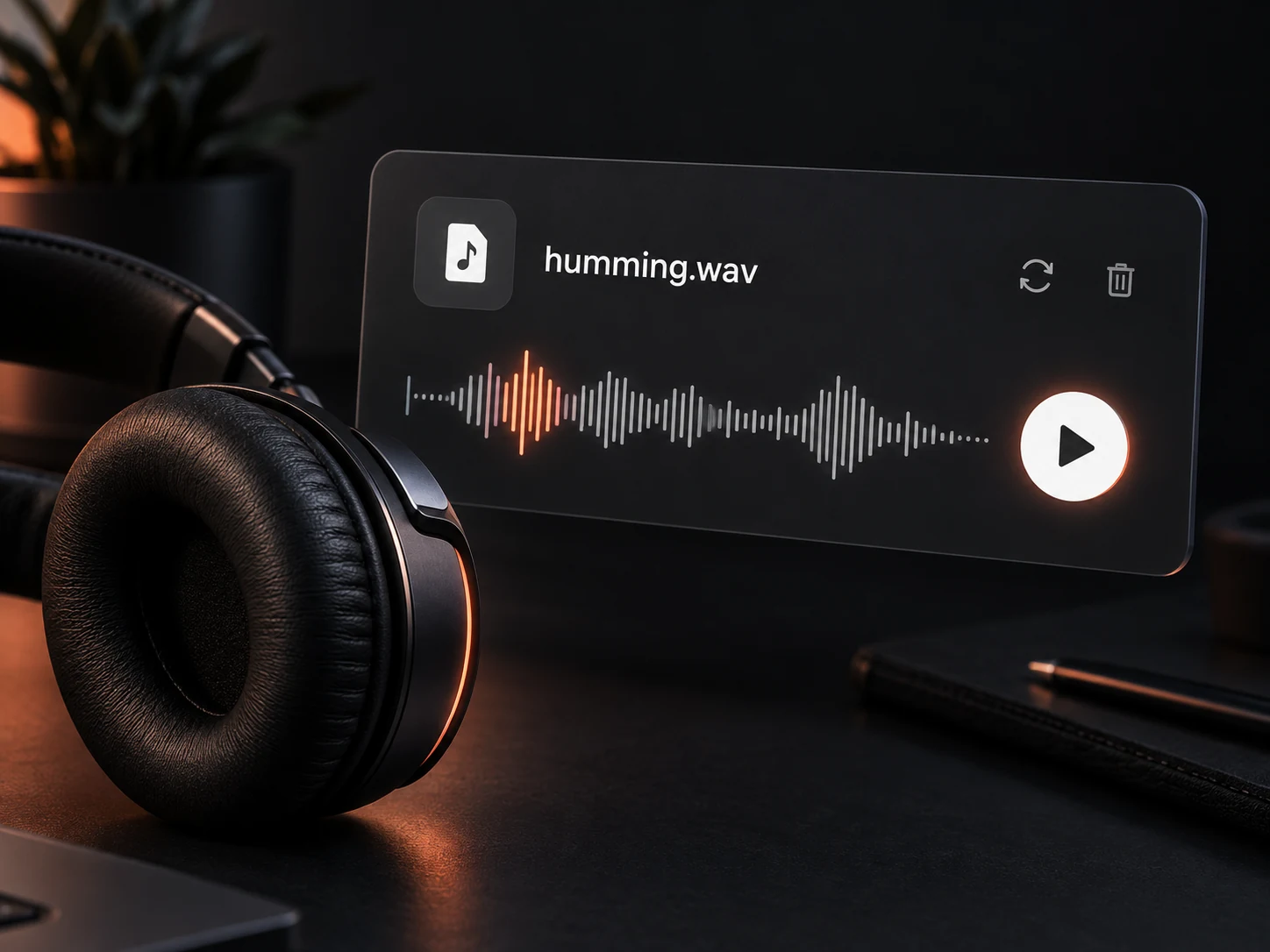
Record or upload your hum, then preview it before generating. Replace the take anytime to give your song a clearer starting point.

Try your hummed recording as a reference, add lyrics, and explore a new musical direction with YuE2.
Looking for hum to song online? Bring a recording of your idea into Music to Music, describe the sound you want, and hear what your next song could become.
Start with 5 free credits. Reference audio generation uses 4 credits per attempt. Listen online and download without a plan-based limit. Record your idea directly in the studio or upload an audio file.
Hum to Song AI uses your hummed melody as a reference, alongside your lyrics and style, to explore a new song from an idea you can already sing.
For Hum to Song AI experiments, YuE2 provides a reference audio workflow. You upload a recording, supply lyrics, and describe the arrangement you want. The recording is part of the creative brief; the result is newly generated audio.
Think of a hum to song converter as a place to explore an interpretation. Hum to Song AI does not promise a note-for-note copy of your melody. Keep your original recording so you can compare the idea you started with and the direction the result takes.
If you want to identify a tune you heard elsewhere, you need a song recognition tool. This page is about creating music from your own starting point.
Give your Hum to Song AI experiment a clear direction: use your recording as the starting point, lyrics for the words, and Style for the sound you want.
01
Record or upload your hum, then preview it before generating. Replace the take anytime to give your song a clearer starting point.
02
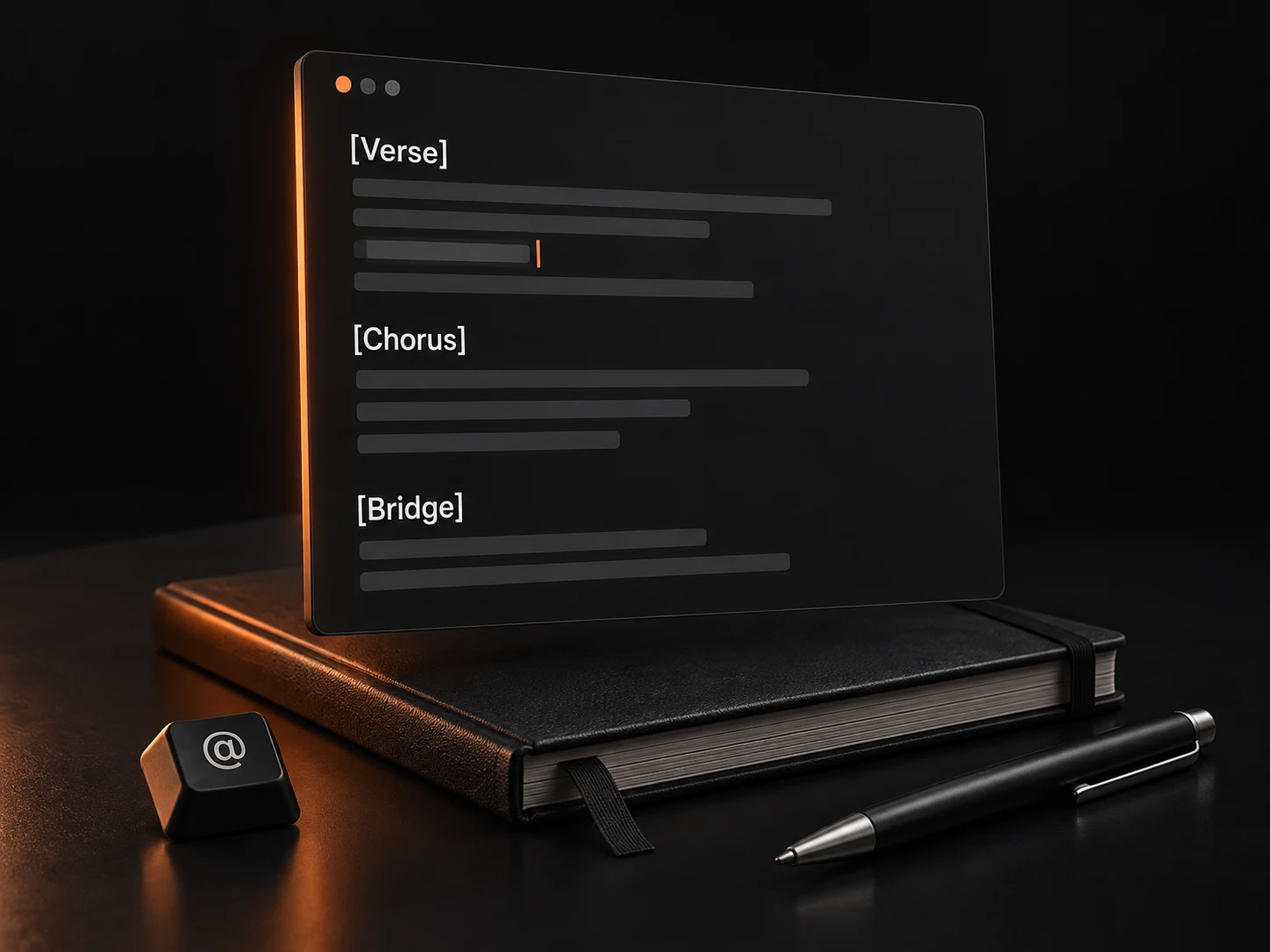
Write your lyrics and arrange verses, choruses, and bridges. Lyrics are required even with reference audio; your hum is not automatically transcribed.
03
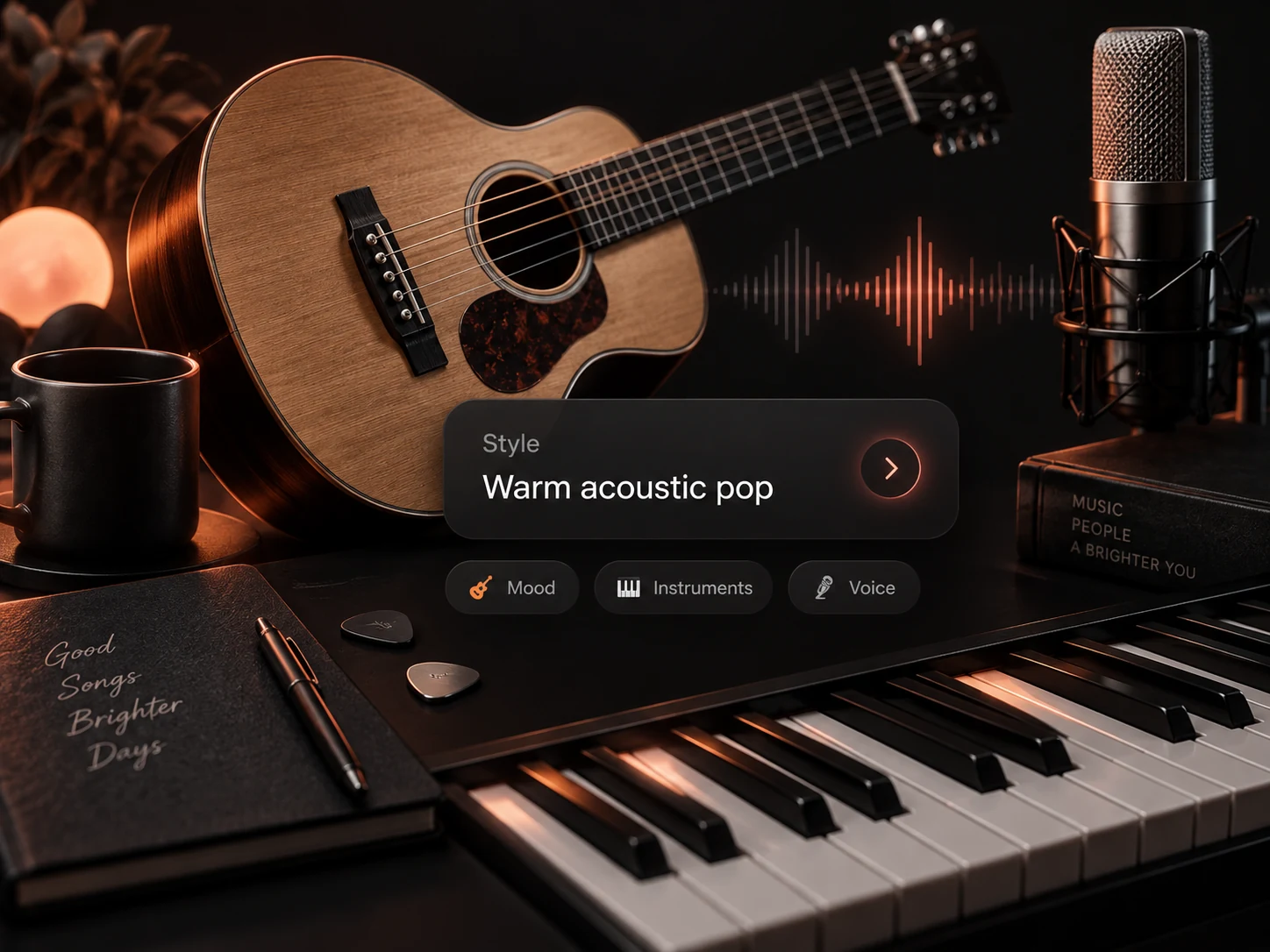
Describe the instruments, mood, and voice in Style. Try a simple direction, such as warm acoustic pop with gentle vocals.
04
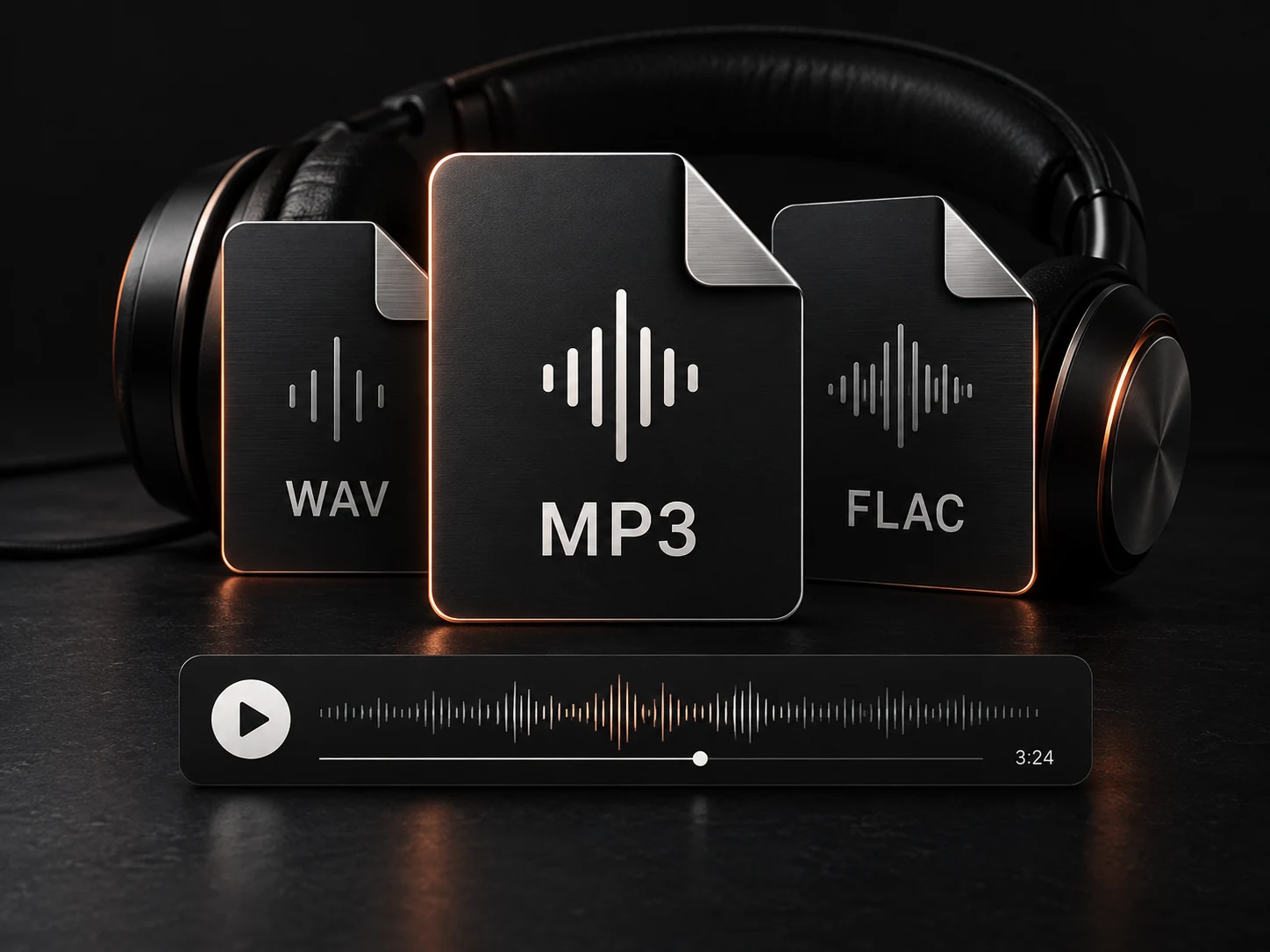
Choose MP3, WAV, or FLAC, listen to your finished song online and download it. Downloads are unlimited on every plan.
Explore lyric drafts, arrangements, and moods around your recording. Start each Hum to Song AI attempt with one change you want to hear.

Bring a hummed phrase and the words you want to develop around it. Give Hum to Song AI a musical direction that suits the idea, then listen to the draft as a starting point for revision. Keep the parts that help you decide what comes next.

Compare softer and more energetic style descriptions in separate Hum to Song AI attempts using the same recording. You are exploring a new interpretation, so compare the mood and delivery rather than expecting the original melody to stay unchanged.

Revise your chorus or test another verse while keeping the reference in the brief. Listen for whether the words communicate the feeling you intended. This gives your next writing session a concrete question: which line needs work, and what do you want the next version to say?
Songwriters, producers, and hobbyists can start with a simple voice memo. Bring the idea you have and a clear direction to explore with Hum to Song AI.

If your next chorus began as a hummed note on your phone, bring that recording into your brief. Add your own lyrics and describe the setting you imagine. Use your Hum to Song AI draft to decide which parts of the song deserve another writing pass.
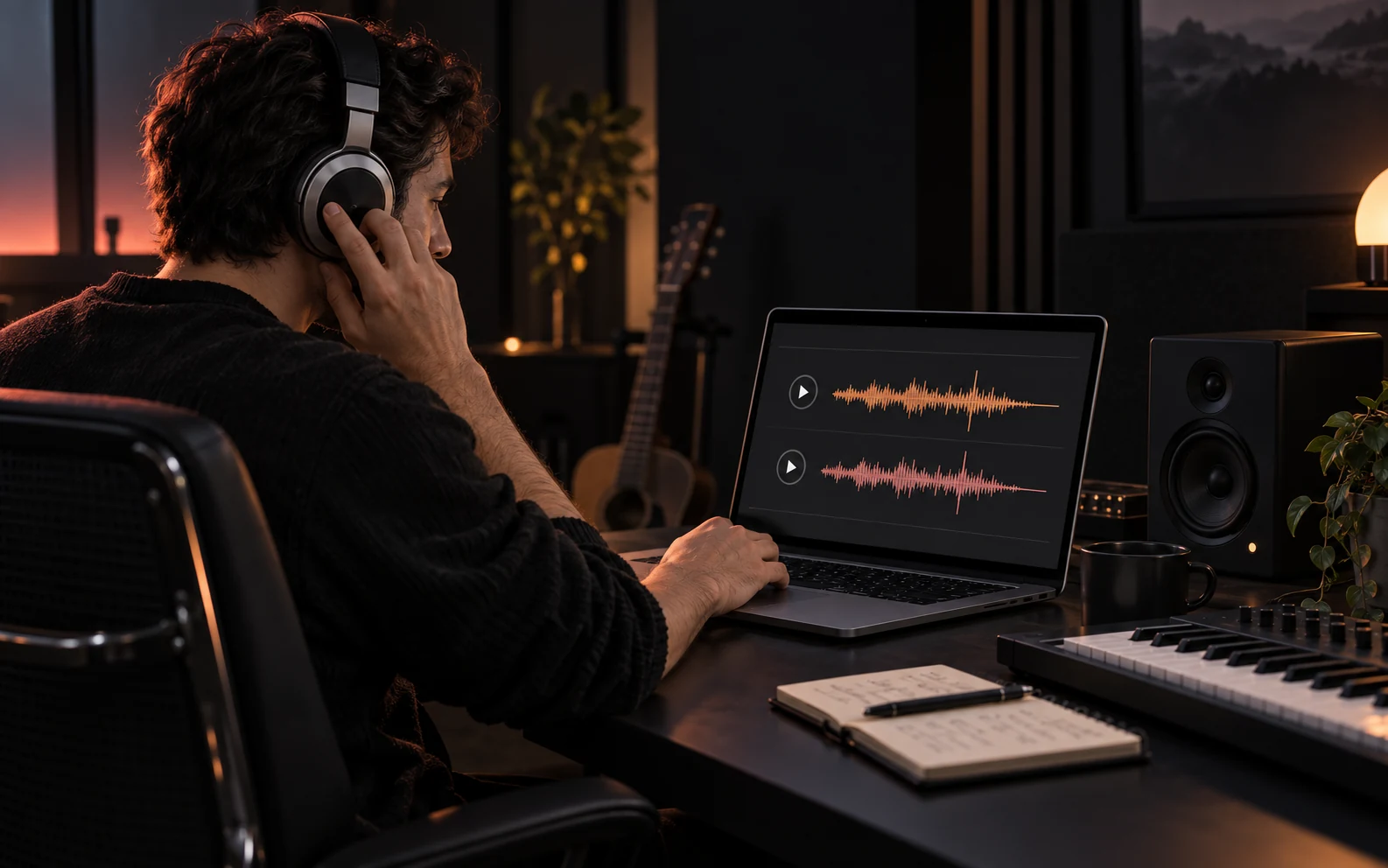
Try Hum to Song AI with a reference and a focused arrangement prompt before planning a detailed session. Treat the output as a draft for discussion. Exact note editing and a multitrack production session are outside the online composer's controls.
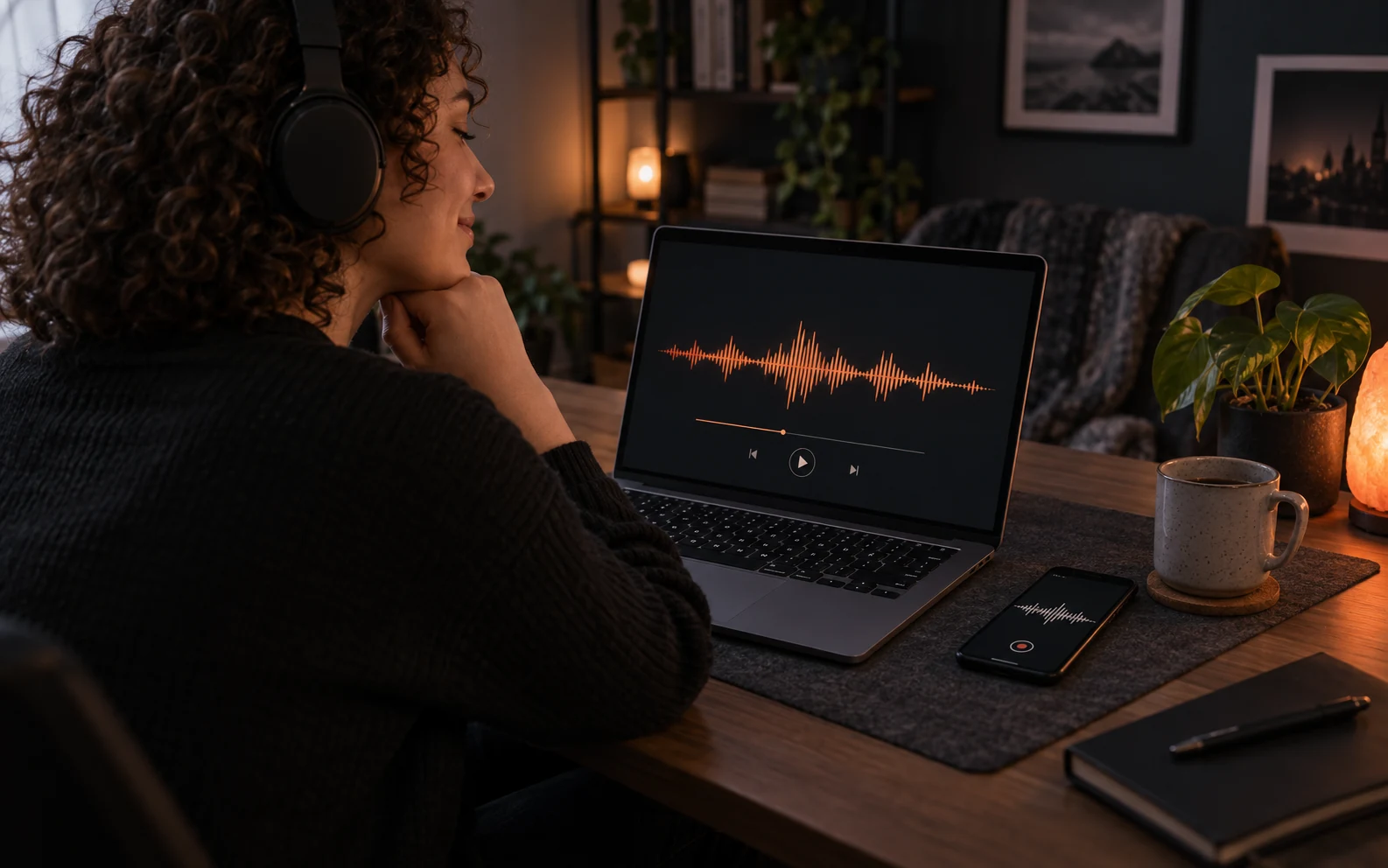
If you want to make a song by humming, start by recording your idea, then prepare words to go with it. You can explore Hum to Song AI without writing musical notation in the studio.
Record or upload your hum, add lyrics and a style prompt, then generate and listen. Keep these inputs focused on the same musical idea.
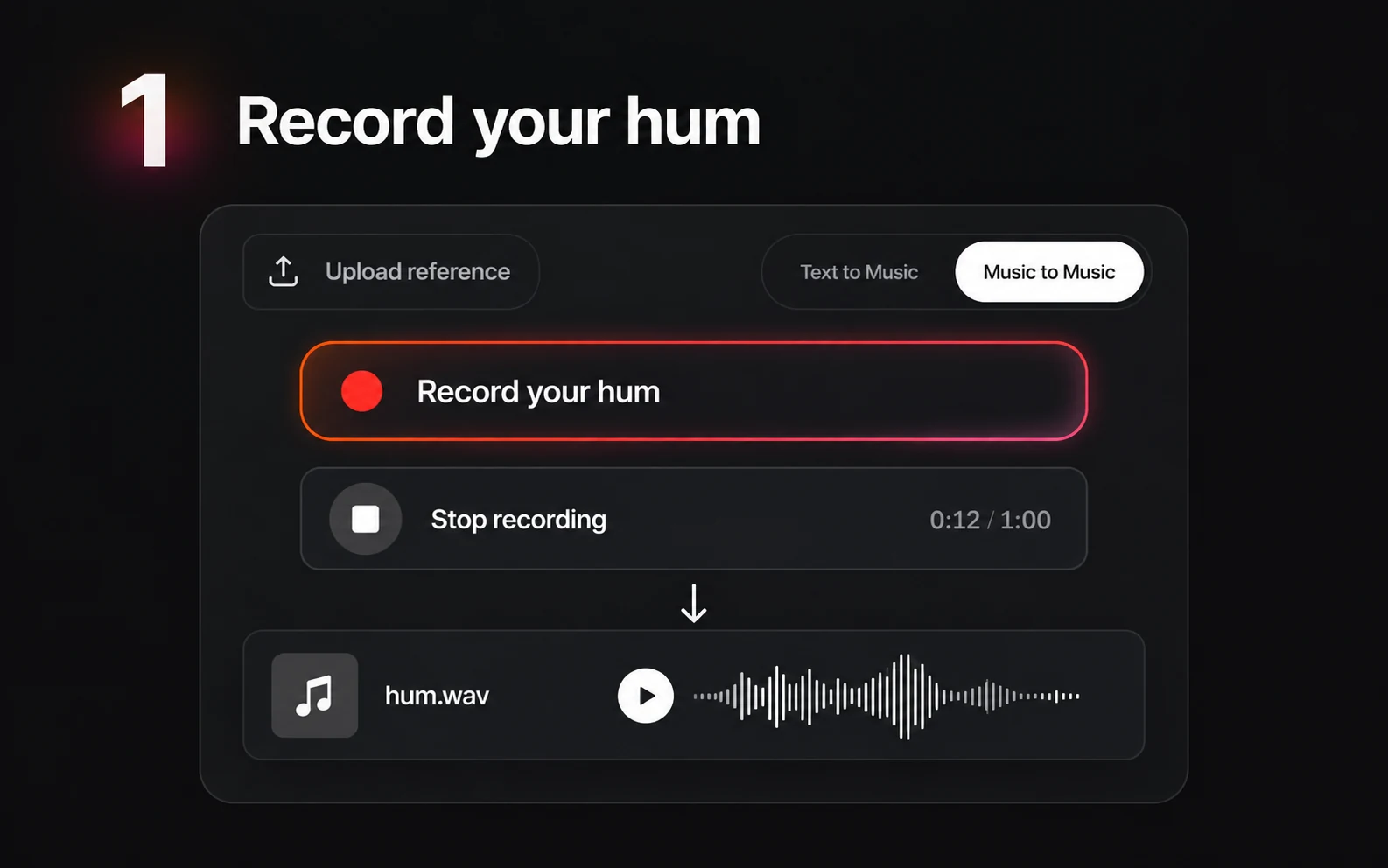
Open Music to Music and select Record your hum. Allow microphone access, hum your idea, and select Stop recording when you are ready. You can record up to 60 seconds. Your take appears in the reference player for a quick listen. Record again to replace it, or upload an existing audio file.
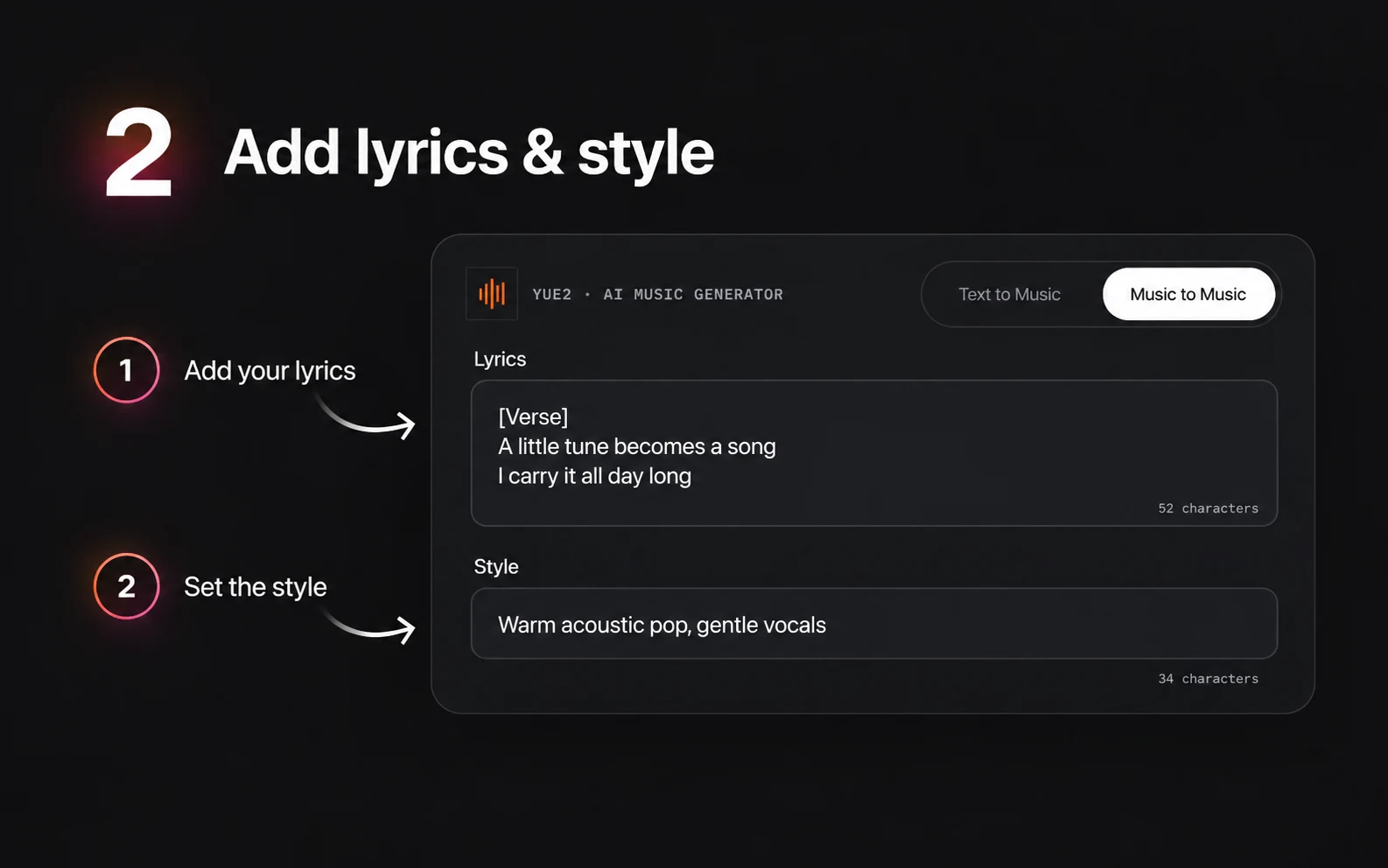
Paste the words you want sung into the lyric field. Describe the genre, instruments, and mood in Style. Hum to Song AI requires both fields, even when you have uploaded audio. If you only have a melody, write a short lyric draft before continuing.
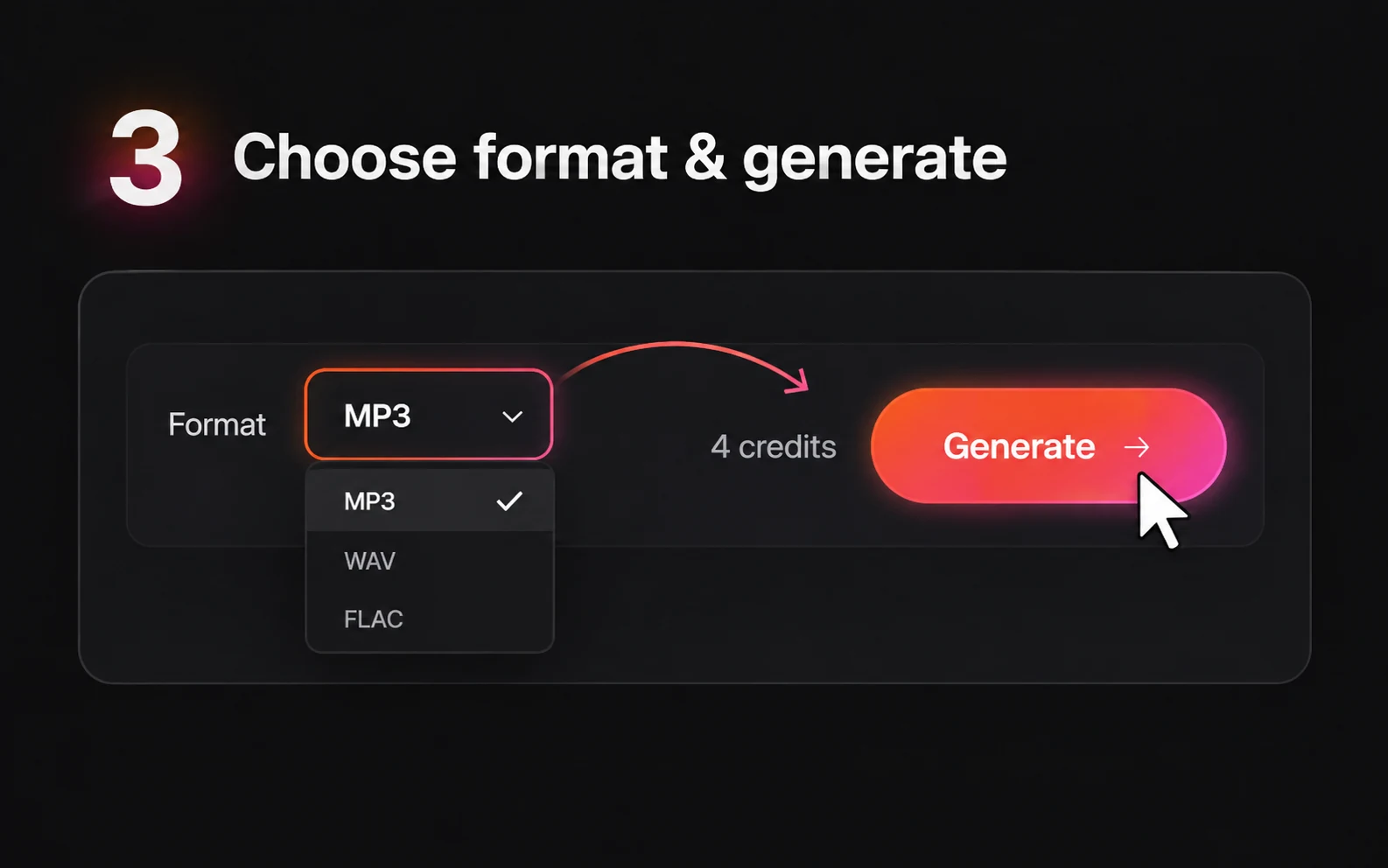
Select MP3, WAV, or FLAC. Sign in and make sure your account has at least 4 credits for Music to Music. Check your Hum to Song AI brief once more, then select Generate.
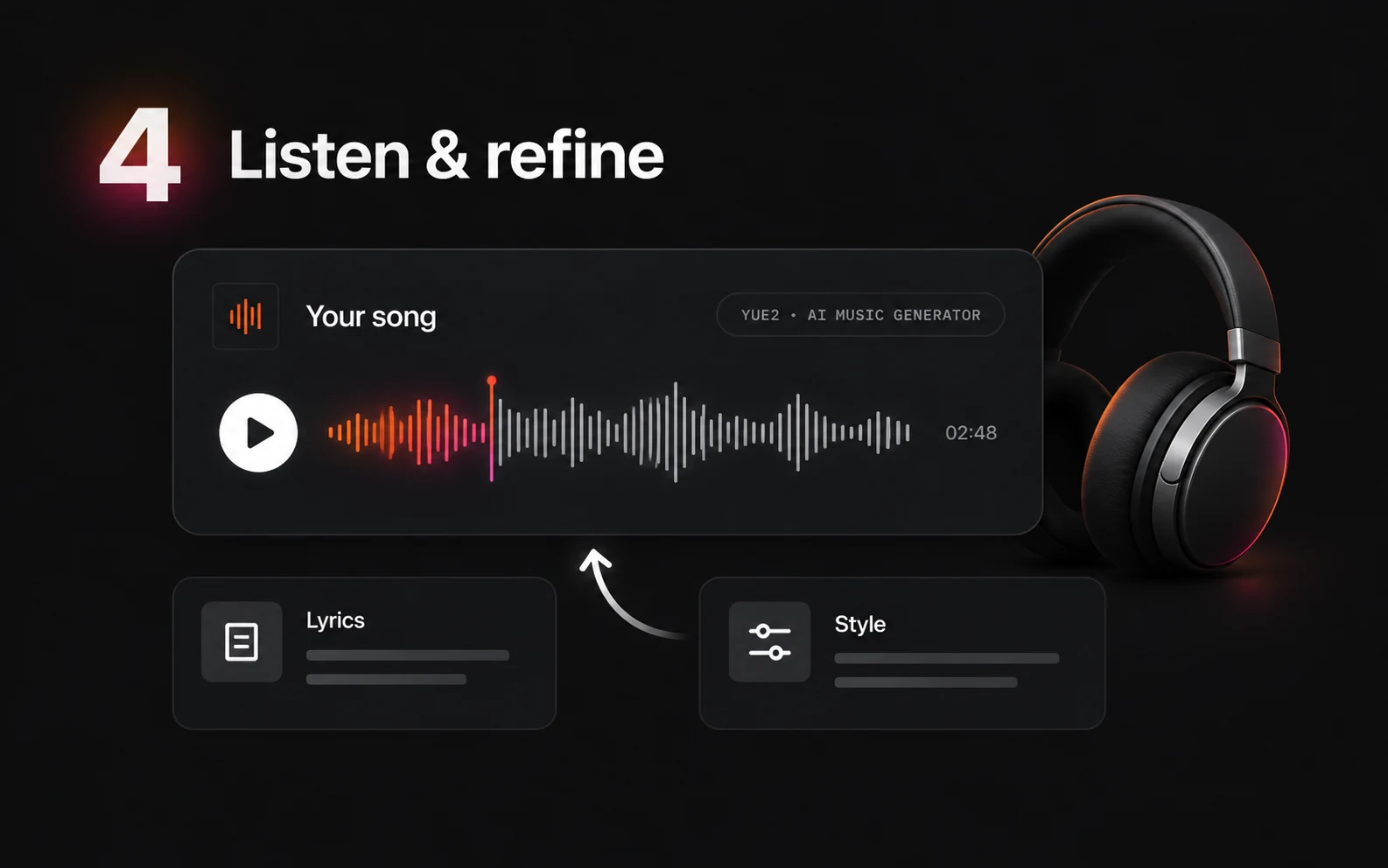
When the result is ready, listen to the whole track. Compare the phrasing, words, and overall direction with your brief. Note one change to try next. Each Hum to Song AI attempt uses credits, so make the next request purposeful.
Start with 5 free credits. Hum to Song AI uses 4 credits per reference audio generation from your YuE2 balance; every plan includes unlimited downloads.
$9.9
One-time · 99 credits
$0.10 / credit
$29.9
One-time · 370 credits
$0.08 / credit (approx.)
$49.9
One-time · 700 credits
$0.07 / credit (approx.)
Find out what to prepare for Hum to Song AI, which inputs are required, and what to expect from reference audio generation before your first attempt.
You can try Hum to Song AI with 5 free credits; Music to Music uses 4 credits per generation. That is enough for one reference audio attempt if your starting balance is unused. You can listen to and download the completed result. Downloads are unlimited on every plan. Before submitting, check the balance shown in your account and make sure your recording, lyrics, and style are ready.
Hum to Song AI in the current YuE2 composer requires lyrics and a style prompt, even when you attach reference audio. A recording alone does not complete the brief. Add the words you want sung and arrange them into the sections you want to explore. Uploading a hum does not fill the lyric field for you. If you have only a melody so far, write a rough lyric draft before you generate. You can revise those words later and use the next take to explore a more developed version of the song.
Exact melody preservation is not guaranteed. Your recording guides the generation alongside your lyrics and style, rather than locking every note in place. Keep the original take and compare it with the result. Listen for the phrase you wanted to develop, the timing of the words, and the overall musical direction. If precise note placement is essential, the online composer does not provide note-level editing controls. Treat this as a way to explore an interpretation and decide what you want to develop further.
Yes. Select Record your hum in Music to Music and allow microphone access in your browser. Hum for up to 60 seconds, then select Stop recording. Your recording becomes the reference audio, ready to preview before generating. You can record another take, remove it, or upload an existing audio file instead. Recording alone does not use generation credits; add your lyrics and style, then select Generate to create your song.
The composer offers MP3, WAV, and FLAC as output choices before generation. Every plan includes unlimited downloads of completed music. Choose the format that fits your next step before you submit the brief. The output is a song file rather than separate vocal, drum, or instrument tracks. There is also no score export control in this composer. If you need detailed editing afterward, plan around the audio file you receive and keep a copy of the lyrics and style you used.
Start your next song with a hummed idea. Record or upload your take, add lyrics and a musical direction, and try Hum to Song AI online.
Start with 5 free credits. Music to Music uses 4 credits per generation. Listen in your browser and decide what you want to try next.