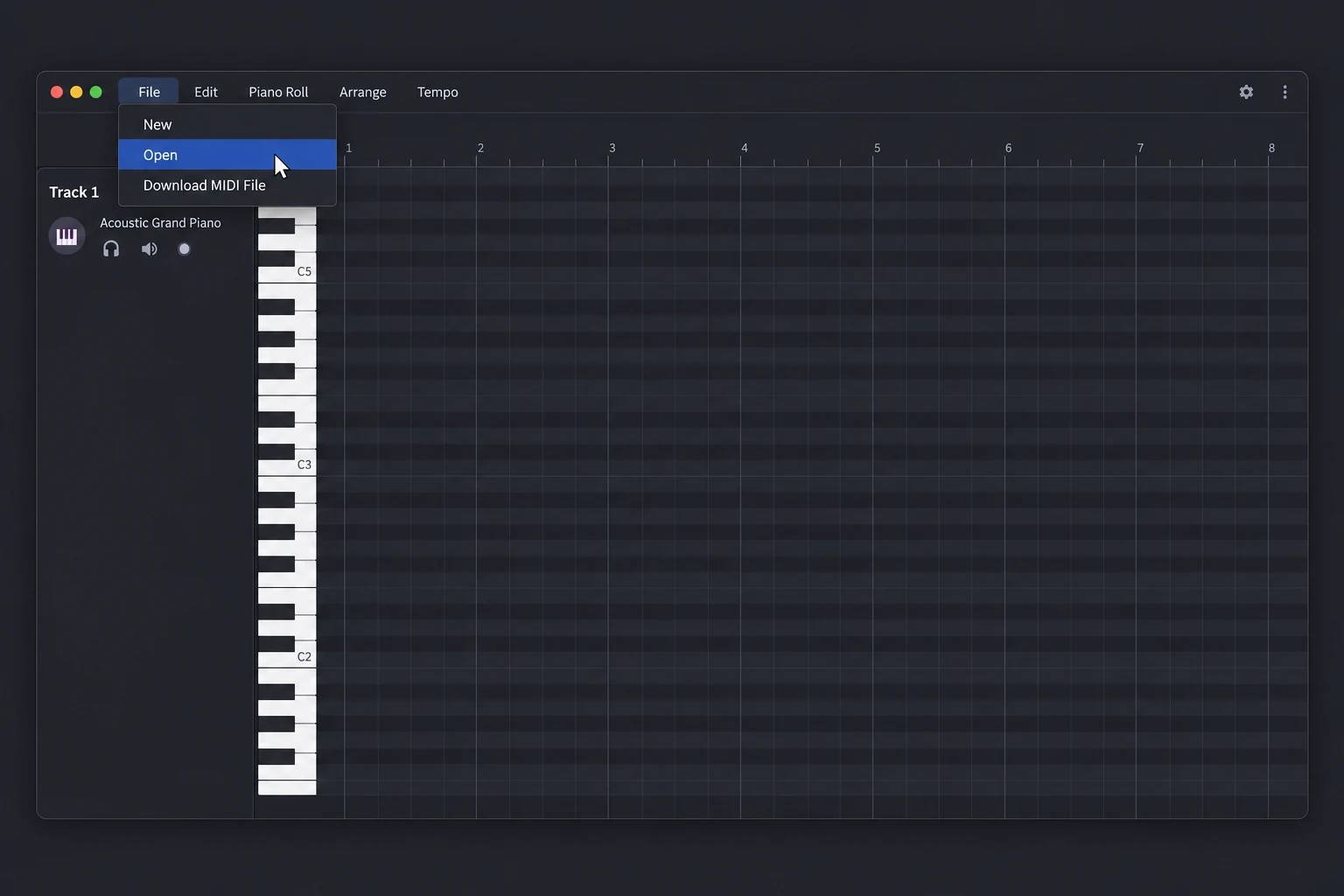
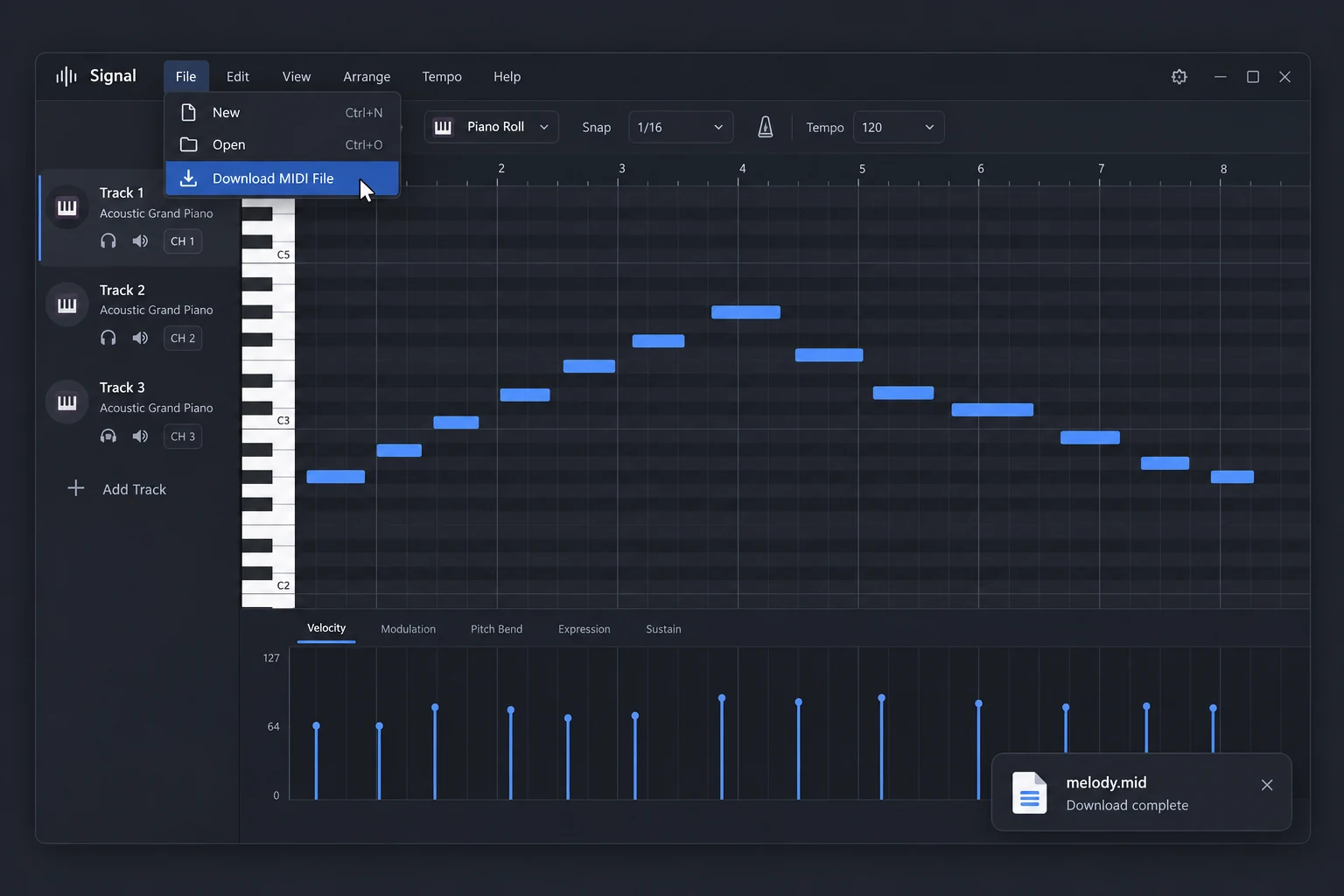
File → Open to import MIDI · File → Download MIDI File to save. Download your work before leaving.
What Is an AI MIDI Editor?
A place to turn machine-generated note data into a musical part you can change and keep.
An AI MIDI editor combines a MIDI editing workflow with an AI-assisted starting point. On YuE2, AI converts audio into MIDI; the Signal workspace lets you edit those notes manually.
MIDI describes a performance rather than storing its recorded sound. It tells an instrument which notes to play, when to start, and how long to hold them. That is why you can move a melody to another pitch or try a different instrument without recording the part again.
Our AI MIDI editor page connects two separate jobs: transcription on the Audio to MIDI page and free editing here. Signal itself is a music sequencer, not an AI composer. There is no chat command that rewrites your song automatically. You decide which notes to keep, change, or remove, then listen before exporting.
Work directly with the notes instead of settling for the first version of a melody.
Use this online MIDI editor for a small correction or a new musical sketch. Its piano roll and playback controls keep the changes visible and audible as you work.
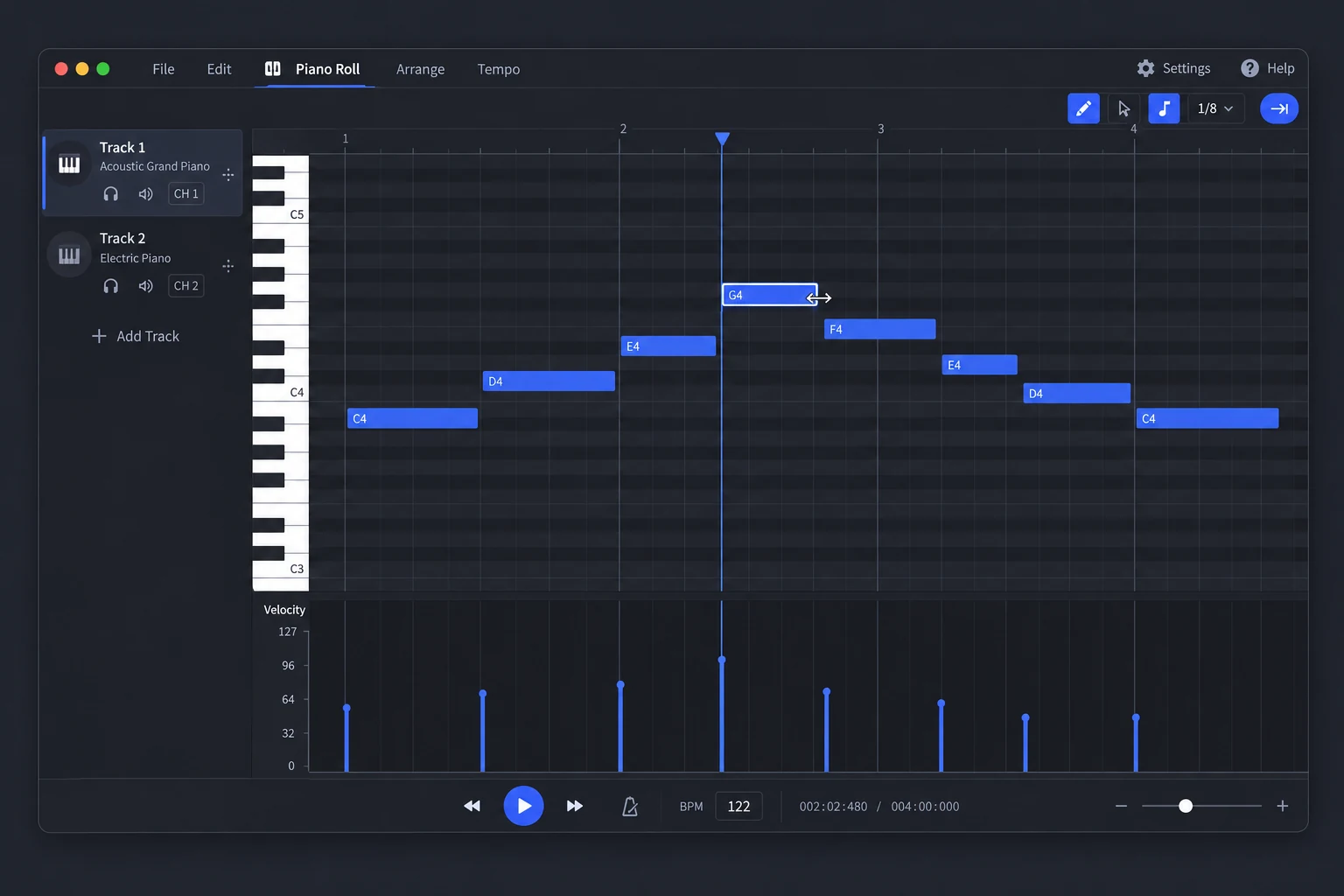
A piano roll you can edit
Move notes up or down to change pitch, shift their start times, and adjust their lengths. The grid makes repeated patterns easier to compare. In this AI MIDI editor workflow, those controls are also useful for cleaning up a transcription that has extra or misplaced notes.
Playback while you work
Listen to the arrangement before you export it. A note may look right on the grid but sound too long against the next phrase. Replay the passage after an edit and keep the version that fits your idea. Playback uses the editor's instruments, not your original recorded voice.
Tempo and velocity controls
Change the tempo to hear your idea at another pace. Adjust note velocity to shape the performance's emphasis. These controls change MIDI events rather than applying audio effects to a recording, so you can continue refining the part in other MIDI software.
Tracks and instruments
Organize a composition into tracks and choose instrument sounds for playback. Keep a melody separate from an accompaniment when building a new arrangement. Imported tracks depend on the source file: the AI MIDI editor does not automatically separate a merged transcription into instrument stems.
Standard MIDI files
Import a standard .mid file and download the edited result as MIDI. Keep an untouched copy of the source before making large changes. Your notes can travel to another MIDI-capable application, although its instrument sounds may differ from the browser preview.
Free editing after AI conversion
Already have MIDI? Start editing without a conversion charge. Starting with audio instead? Use YuE2's separate converter for 2 credits per conversion, download the result, and open it here. Editing, listening, and MIDI export remain free.
What Can You Create with the AI MIDI Editor?
Build editable musical parts, from a short melody to an arrangement with several tracks.
The output is a MIDI file you can return to and change. Treat the AI MIDI editor as a sketchbook for notes, not a finished audio mastering service.
Melody variations
Keep the rhythm of a phrase while changing its pitches. Compare a higher ending with a lower one and export the version you prefer.
Chord and bass sketches
Add a supporting part on another track. Hearing it alongside the melody can help you decide where the harmony should change.
Cleaned-up transcriptions
Open MIDI produced by the audio converter and correct notes by hand. Remove an unwanted note or adjust a held note without repeating the conversion.
Starting points for your DAW
Save a note arrangement as MIDI, then choose your own instruments in your production software. The browser preview is a guide; the exported file does not contain those audio samples.
Who Is the AI MIDI Editor Built For?
For producers, remix makers, and beginners who want control over individual notes.
You do not have to begin with a full song. Open the AI MIDI editor with a short phrase and a specific change you want to hear.
Producers refining an idea
Sketch a part before moving into a larger production session. Use the free MIDI editor to adjust a melody or rhythm, then take the file into your usual software for sound design and mixing.
Creators working from AI audio
A transcription is a starting point, not a guarantee that every note is correct. This AI MIDI editor gives you a manual pass after conversion: inspect the notes, compare them with the recording, and make the changes you hear.
Beginners learning by listening
Draw a few notes and press play. Change one note at a time to hear what pitch, timing, and duration do. A desktop or laptop gives the piano roll more room than a small phone screen.
How To Use the AI MIDI Editor
Open your MIDI, edit and listen, then download your file — all three steps are free.
The workspace loads automatically in English. Use full screen or open it in a separate tab for more room.
01
Open or create a MIDI file
Use File → Open to choose a .mid file. You can also start a new composition. If your starting point is an MP3 or WAV, convert it on the Audio to MIDI page first, then click Edit MIDI in the result to load it here automatically.
02
Edit and listen
Select the track you want to work on. Change notes in the piano roll, adjust timing or velocity, and play the passage to hear the result. Start with a short section so it is easy to compare your changes. The AI MIDI editor leaves the musical decisions with you.
03
Download your MIDI
Use File → Download MIDI File to save the edited MIDI file. Save it before closing the tab or opening another project. You can import that MIDI into compatible music software for further arrangement, instrument selection, and audio production. MIDI export does not spend YuE2 credits.
AI MIDI Editor Is Free
Open, edit, play and export MIDI at no cost.
No subscription, no credit pack, and no payment required to use the editor.
Open MIDI files, create a composition, edit notes, listen to playback, and download your MIDI for free. Every step in this editor is included — importing, editing, playback and export.
Starting with audio? Audio to MIDI conversion is a separate tool at 2 credits per conversion. Editing your MIDI here is free. These credit packs are not required to use the editor.
Starter
$9.9
One-time · 99 credits
$0.10 / credit
49 audio to MIDI conversions
2 credits per conversion
Unlimited MIDI downloads
Unrestricted commercial use
2 jobs at once
Email support
Basic
$29.9
One-time · 370 credits
$0.08 / credit (approx.)
185 audio to MIDI conversions
2 credits per conversion
Unlimited MIDI downloads
Unrestricted commercial use
5 jobs at once
24/7 email support
Plus
Most popular
$49.9
One-time · 700 credits
$0.07 / credit (approx.)
350 audio to MIDI conversions
2 credits per conversion
Unlimited MIDI downloads
Unrestricted commercial use
10 jobs at once
24/7 email support
AI MIDI Editor FAQ
Answers about free editing, AI conversion, file formats, playback, and saving your work.
Before you start, check which file you have and what you want to change. MIDI editing and audio editing are different jobs, even when they begin with the same song.
Is this AI MIDI editor free?+
Editing, playback, and MIDI export on this page are free. You do not spend YuE2 credits to move notes, try an instrument, or download a MIDI file. The optional audio transcription tool costs 2 credits per conversion on a separate page. If you already have a .mid file, you can skip that step entirely. The workspace runs a locally hosted version of the open-source Signal editor. Keep a downloaded copy of your work before leaving the page so that you are not relying on an open browser session.
Can the AI MIDI editor turn MP3 into editable notes?+
Use the separate Audio to MIDI converter to turn an MP3 or WAV into MIDI, then click Edit MIDI in the conversion result to load it in this editor automatically. Signal does not transcribe audio inside the piano roll. The conversion creates a note-based starting point that you can adjust here manually. You may need to correct pitches, timing, or notes that came from background sounds. Full transcription returns a merged MIDI track, not isolated instrument stems. Listen to the source recording when reviewing the result, and save the changes as a new file.
Does the AI MIDI editor compose music from text prompts?+
This page does not offer prompt-based MIDI composition or an AI chat assistant. The AI part of YuE2's workflow is audio transcription on the linked converter page. Signal provides manual editing and composition tools for the resulting MIDI or a file you already have. You can start a blank project and draw your own notes, but the editor does not invent them from a description. If you are looking for a whole recorded song from lyrics, the YuE2 AI Music Generator is a separate tool with a different output.
Can I use this MIDI editor online without installing software?+
The editor runs in your browser and does not require a desktop installation for ordinary MIDI editing. The locally hosted workspace loads automatically when you open this page. A desktop or laptop is the more practical choice for detailed piano-roll work because notes and controls need space. The full-screen control can give you a larger working area without leaving the page. If your browser blocks the embedded workspace, use the independent-tab link instead. Use a modern browser and download important work rather than keeping it only in an open tab.
Why does MIDI playback sound different from my recording?+
MIDI stores note and performance instructions, not the recorded sound of a singer or instrument. Signal plays those instructions with its available sounds. A downloaded MIDI file can therefore sound different when opened in another application using different instruments. That does not necessarily mean its pitches or timing have changed. If you began with audio transcription, compare the notes and rhythm rather than expecting the original voice or production effects. Use your music software's instruments and mixing tools when you want to produce a finished audio version.
How do I save work from the AI MIDI editor?+
Use File → Download MIDI File to keep a standard MIDI file on your device. Keep the downloaded file somewhere you can find before navigating away, reloading, or starting a new composition. A MIDI file preserves the note arrangement for later editing, but it is not a finished MP3 recording. Reopen the file in a compatible MIDI application when you want to continue. You do not need to pay YuE2 credits for this export. If a browser download is blocked in the embedded view, open the workspace in a new tab.
Start with a File. Finish with Your Own Notes.
Open the AI MIDI editor, make a change you can hear, and keep the result for free.
Bring an existing MIDI file or start a blank idea. If your music is still audio, convert it first, then return here to shape the notes yourself.