

English · Style variation · 2:57
Heartland Rock → Jazz
The review keeps the Heartland Rock lyrics and seed, then changes the style prompt to jazz. This is a style experiment, not an audio-upload test.

Start with a recording. Explore another way the song could sound.
Upload one reference track, add the lyrics you want performed and describe a new musical direction. Music to Music is ready in the studio below, with the same controls as the homepage.
5 free credits to start. Sign in to generate.
Two review experiments illustrate style variation and score-based covers. They demonstrate model workflows, rather than the online studio’s reference-audio generation.
English · Style variation · 2:57
The review keeps the Heartland Rock lyrics and seed, then changes the style prompt to jazz. This is a style experiment, not an audio-upload test.

English · Supplied-score cover · 1:09
A heavy-metal rendition generated from supplied ABC notation and English lyrics. The review did not test transcription from an uploaded recording.
Audio reused from the YuE2 review, not customer submissions. Cover artwork was generated for these listening cards.
A reference-audio workflow for exploring a different rendition of a song.
Your recording supplies a musical starting point. Lyrics and a style prompt describe the direction of the new generation.

YuE2 AI Music Cover opens the studio in Music to Music mode. Add one audio file, supply the words and choose a style. The result is newly generated audio guided by those inputs, rather than a timeline edit of your original recording.
The official YuE2 model also supports score-based covers, where a transcribed melody guides a new arrangement. The supplied-score experiment in our YuE2 review illustrates that separate workflow. This page uses the reference-audio controls available in our online studio. Use Audio to Sheet Music for transcription. It does not promise an exact reproduction of the source melody.
Use the recording, lyrics and style together to describe what you want to hear.
Each input contributes something different. Prepare them before spending credits on the next version.
01
Upload an audio file from your device. Once it is selected, the studio shows the filename and a player so you can check that it is the recording you intended to use. You can replace or remove it before generating.
02
Enter the actual words you want sung. Keep a familiar chorus, develop a new verse or try a different lyric draft as part of your creative brief. The studio requires lyrics even when a recording is attached; uploading a file does not fill the lyric field for you.
03
Describe the target sound in Style. Mention the main instruments, mood and vocal character. For instance, move toward a gentle acoustic arrangement or a brighter electronic direction. Keep the request focused enough that you can hear whether the result moves toward your idea.

04
Choose MP3, WAV or FLAC before generating, then listen to and download the completed rendition. Downloads are unlimited on every plan. This workflow produces a song file; it does not provide a multitrack mixing session or separate vocal and instrumental stems.
Use a familiar starting point to ask a new musical question.
A useful brief names the change you want to investigate, while allowing room for a generated interpretation.

Bring a recording and describe a contrasting arrangement. You might try a softer folk setting for an energetic idea, or a fuller band sound for a quiet song. Listen to how the rhythm, instruments and vocal delivery work together, rather than expecting every note to remain unchanged.

Use the recording to guide the musical direction while trying words you have revised. Check whether the new lines fit naturally and whether the central idea still comes through. The generated version may change phrasing or structure, so review the entire result before choosing another revision.

Create a reference-guided draft to help explain an idea to another musician. Compare what the result suggests with what you wanted: a quieter verse, a more open arrangement or a different emotional tone. Take those observations into your next prompt or your regular production session.
A recording can communicate a direction that is difficult to describe from scratch.
This page is most useful when you have audio to bring into the brief and a specific change to explore.
Try another setting for your words. Use a recording you can work with, then decide which parts of the generated result help the song and which need a different approach.
Hear alternatives before planning a detailed recording. Reference generation can develop a direction; precise editing, mixing and mastering still belong in your production workflow.
Compare two focused prompts against the same reference. Keep notes on the inputs and listen for concrete differences in instrumentation, energy and delivery. Each new attempt uses credits, so define the comparison before submitting.
Choose based on the material you want the model to start from.
YuE2 AI Music Cover starts in Music to Music. You can still switch to Text to Music in the same studio.
| Your brief | Music to Music | Text to Music |
|---|---|---|
| Inputs | Reference audio, lyrics and style | Lyrics and style |
| Starting point | An existing recording | A written song idea |
| Cost | 4 credits per generation | 3 credits per generation |
| Formats | MP3, WAV, FLAC | MP3, WAV, FLAC |
If you only have words, the YuE2 AI Music Generator is the clearer starting point. If a recording matters to the idea, keep Music to Music selected. The word cover here describes reference-guided song generation; this page does not offer a celebrity voice library, voice cloning or automatic vocal replacement.
Add the lyrics and reference, set the target style, generate, then follow the progress until the rendition is ready.
The four-step visual guide uses the same artwork and layout as the homepage. Music to Music still requires one reference audio file in addition to lyrics and style.
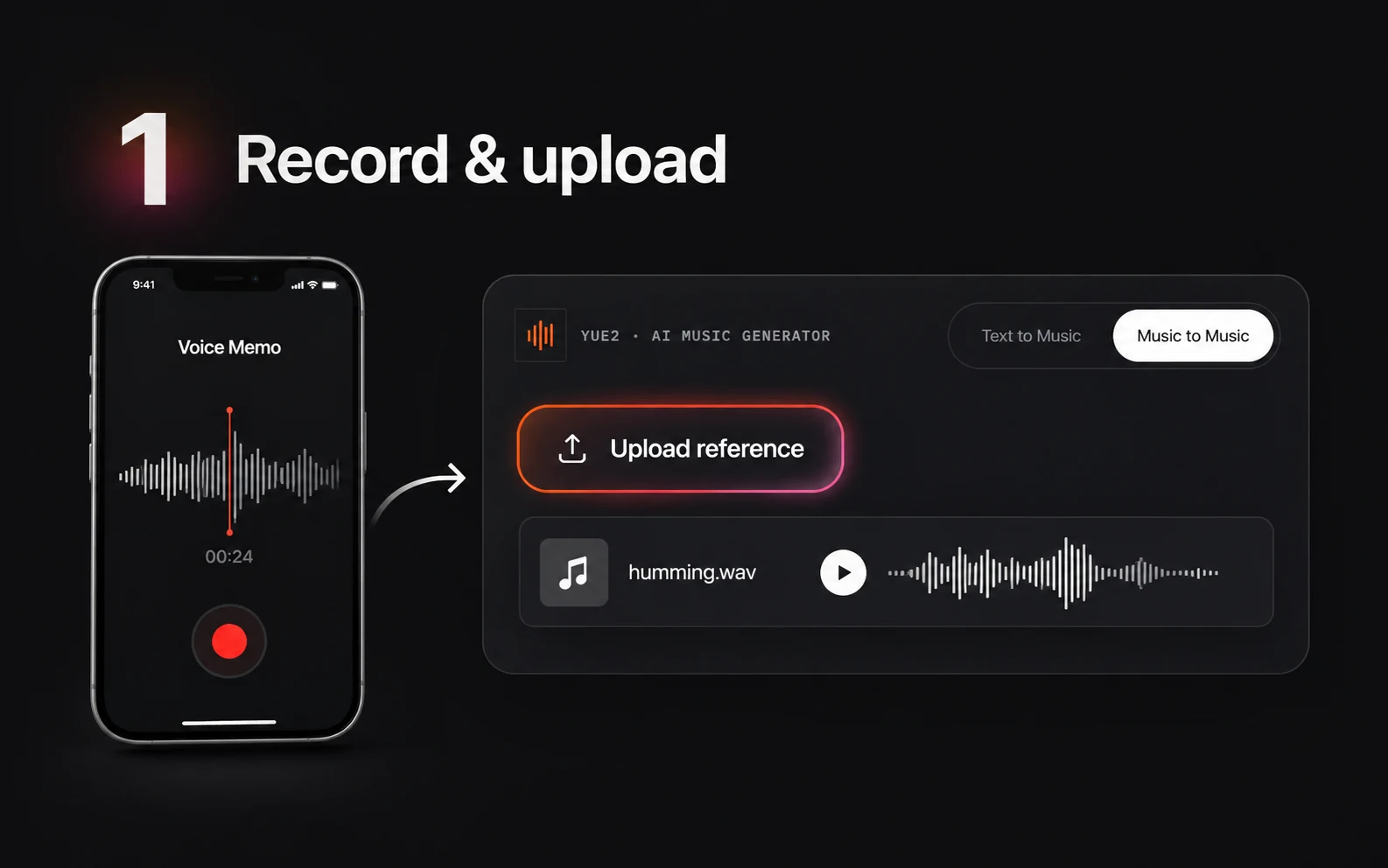
Keep Music to Music selected, choose one audio file and check it with the reference player. Paste the lyrics into their own field and separate the sections you want performed.
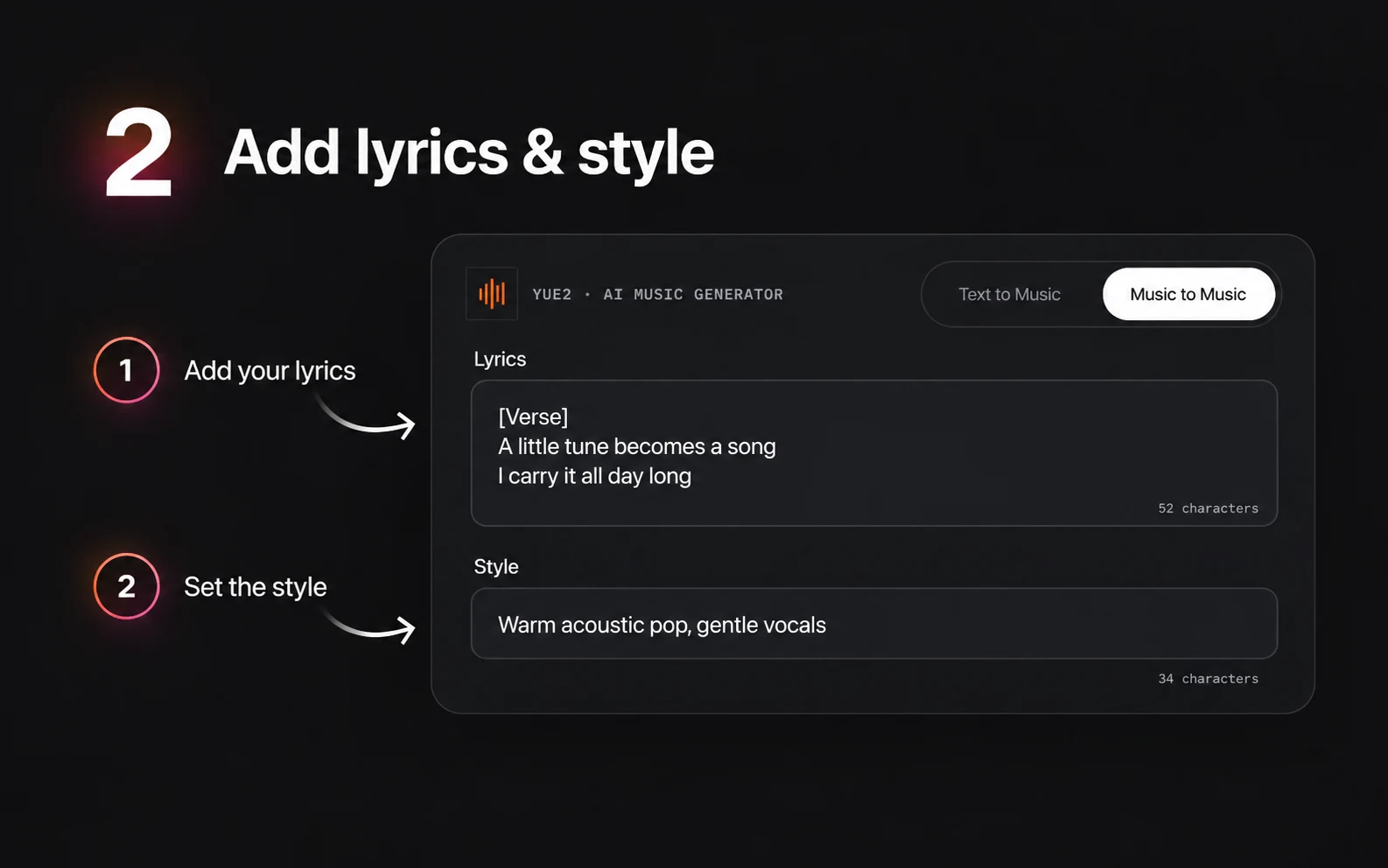
Describe the genre, mood, vocal character and instruments you want to emphasize. Ask for one coherent arrangement instead of several unrelated changes.
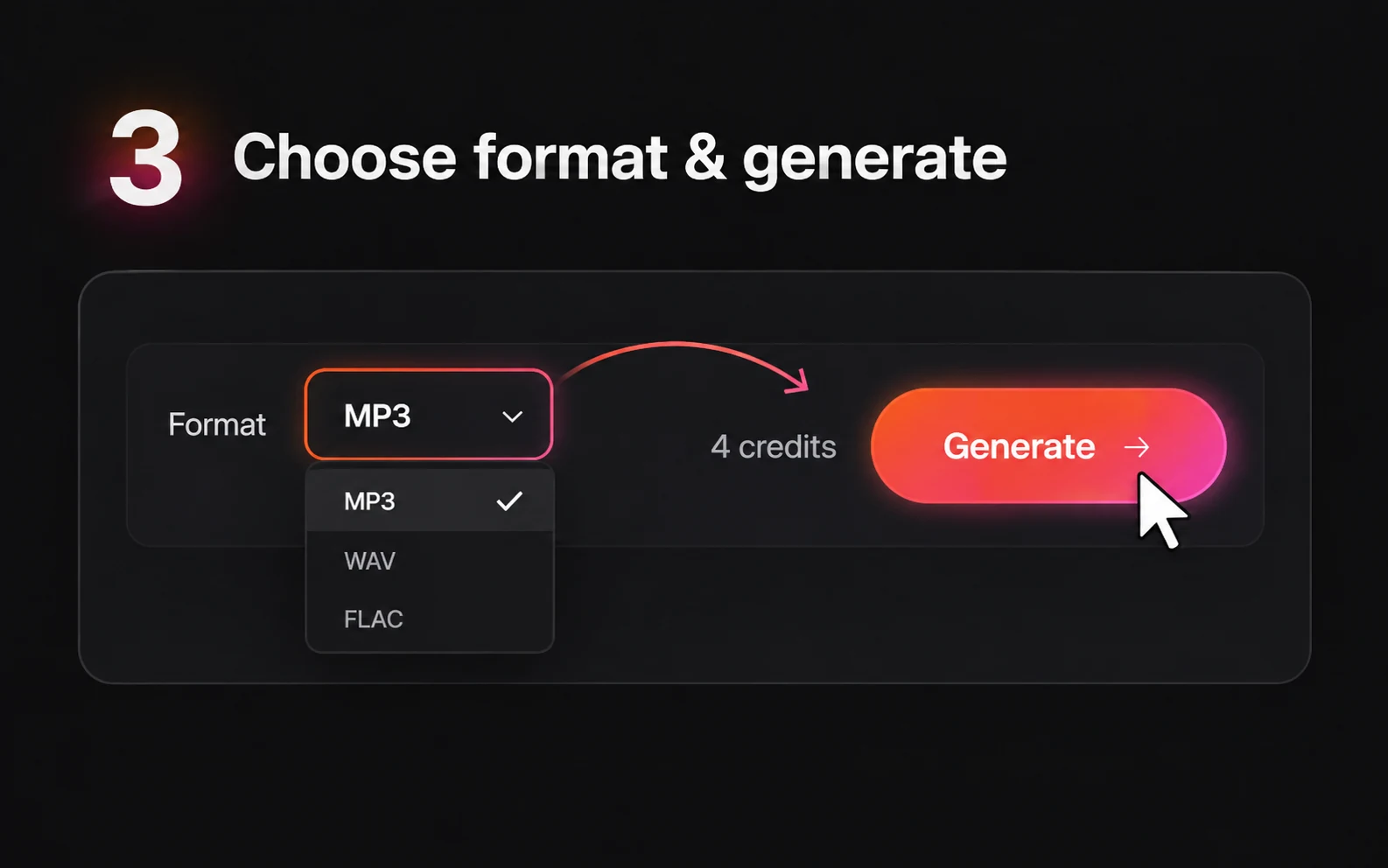
Select MP3, WAV or FLAC, sign in and check that you have at least 4 credits. Select Generate when the reference, lyrics and style are ready.
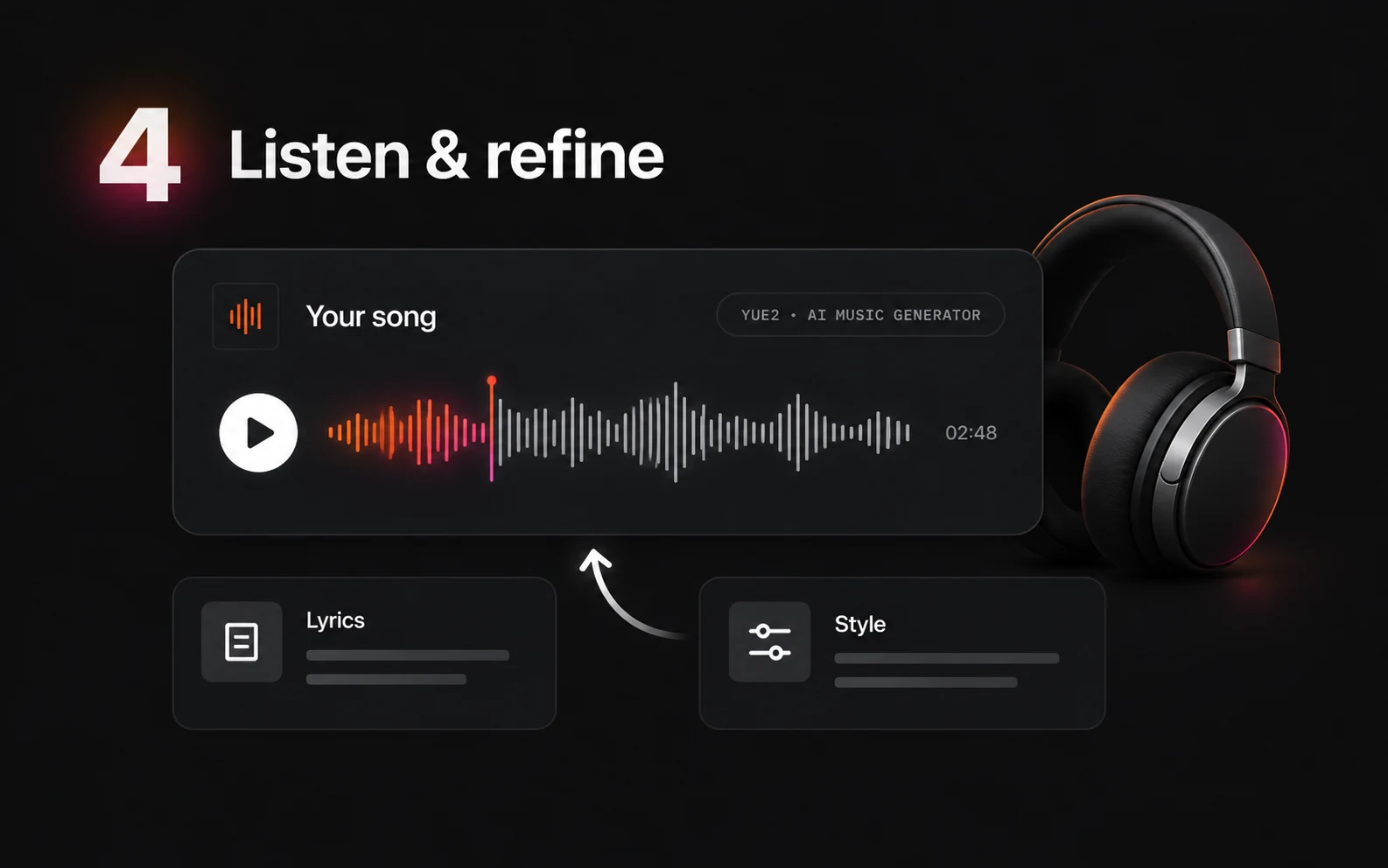
The estimated progress bar advances to 95% over about 60 seconds, then waits for the actual result. Listen to the completed track for phrasing, pronunciation and musical direction before trying another version.
Try the studio with 5 free credits, then choose a one-time pack. Text to Music costs 3 credits; Music to Music costs 4. Each new generation uses credits.
Every plan includes unlimited music downloads. Free output is for personal use; paid packs add unrestricted commercial use with no royalties or revenue share. There is no monthly subscription.
$9.9
One-time · 99 credits
$0.10 / credit
$29.9
One-time · 370 credits
$0.08 / credit (approx.)
$49.9
One-time · 700 credits
$0.07 / credit (approx.)
Inputs, credits and the controls available in this browser studio.
The Free plan starts with 5 credits, enough for one Music to Music generation at 4 credits. You can listen to the result in the studio and download the completed song. Downloads are unlimited on every plan.
No. The online composer asks you to provide lyrics and a style description as well as the reference audio. Check the words and section order yourself before generating.
You can describe a different genre or arrangement in the style prompt and use a recording as the reference. The result is a generated interpretation, so a precise genre match or unchanged melody is not guaranteed.
This page provides reference-guided music generation. It does not expose voice cloning, a library of celebrity voices, or a control that swaps only the singer while leaving the original accompaniment untouched.
You can edit melody and chords in an ABC notation file. Use Audio to Sheet Music to turn a recording into an ABC notation file and score image. Download the ABC file and edit it in a text editor. For editable MIDI notes, use Audio to MIDI.
Choose MP3, WAV or FLAC before generating. Every plan includes unlimited downloads of completed music. Separate stems and editable scores are not output options in this composer.
Both pages share the same studio and account credits. This page starts in Music to Music for a reference recording; the generator page starts in Text to Music for lyrics and style. You can switch modes on either page.
Start with one recording, your lyrics and a focused style prompt. YuE2 AI Music Cover gives you a place to hear the idea, with 5 free credits available to begin.